9 Classes, Animation and User Control
We can use a class to represent our program. The Arcade library has a built-in class that represents a window on the screen. We can create our own child class and override functions to handle:
- Start-up and initialization
- Drawing the items on our screen
- Animating/Updating the positions of items on our screen
- Responding to the keyboard
- Responding to the mouse
One of the best ways of learning to program, is to look at sample code. This chapter has several examples designed to learn how to:
- Open a window using an object-oriented approach
- Animating objects
- Moving objects with the mouse
- Moving objects with the keyboard
- Moving objects with the joystick
9.1 Creating a Window with a Class
Up to now, we have used a function to open a window. Here’s the code:
1 2 3 4 5 | import arcade
arcade.open_window("Drawing Example", 640, 480)
arcade.run()
|
We can also use an object to open a window. The code is rather straight-forward.
1 2 3 4 5 | import arcade
window = arcade.Window(640, 480, "Drawing Example")
arcade.run()
|
Function calls, and calls to create an instance of an object look very similar.
The tell-tale clue that we are creating an instance of an object in the second
example is the fact that Window is capitalized.
9.2 Extending the Window Class
Arcade’s Window class has a lot of built-in methods that are automatically
called when needed. Methods for drawing, for responding to the keyboard, the
mouse, and more. You can see all the methods by looking at the
Window Class Documentation.
But by default, these methods don’t do anything. We need
to change that.
As we learned from the prior chapter, we can extend the functionality of a class
by creating a child class.
Therefore, we can extend the Window class by creating
a child class of it. I’m going to call my child class MyApplication.
1 2 3 4 5 6 7 8 9 10 11 12 13 | import arcade
class MyApplication(arcade.Window):
def __init__(self, width, height, title):
# Call the parent class's init function
super().__init__(width, height, title)
window = MyApplication(640, 480, "Drawing Example")
arcade.run()
|
9.3 Drawing with the Window Class
To draw with the Window class, we need to create our own method called
on_draw. This will override the default method built into the Window
class. We will put our drawing code in there.
We also need to set the background color. Since we only need to do this once,
we will do that in the __init__ method.
1 2 3 4 5 6 7 8 9 10 11 12 13 14 15 16 17 18 19 | import arcade
class MyApplication(arcade.Window):
def __init__(self, width, height, title):
# Call the parent class's init function
super().__init__(width, height, title)
arcade.set_background_color(arcade.color.ASH_GREY)
def on_draw(self):
arcade.start_render()
arcade.draw_circle_filled(50, 50, 15, arcade.color.AUBURN)
window = MyApplication(640, 480, "Drawing Example")
arcade.run()
|
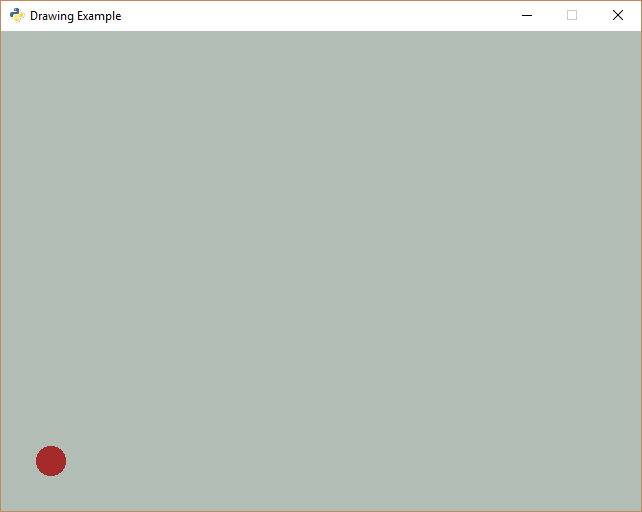
The result of this program just looks like:
9.4 Animating
By overriding the animate method, we can update our ball position and
animate our scene:
1 2 3 4 5 6 7 8 9 10 11 12 13 14 15 16 17 18 19 20 21 22 23 24 25 26 27 28 | import arcade
class MyApplication(arcade.Window):
def __init__(self, width, height, title):
# Call the parent class's init function
super().__init__(width, height, title)
arcade.set_background_color(arcade.color.ASH_GREY)
self.ball_x = 50
self.ball_y = 50
def on_draw(self):
""" Called whenever we need to draw the window. """
arcade.start_render()
arcade.draw_circle_filled(self.ball_x, self.ball_y, 15, arcade.color.AUBURN)
def animate(self, delta_time):
""" Called to update our objects. Happens approximately 60 times per second."""
self.ball_x += 1
self.ball_y += 1
window = MyApplication(640, 480, "Drawing Example")
arcade.run()
|
9.4.1 Encapsulating Our Animation Object
It doesn’t take much imagination to realize that adding more parameters to
the ball, getting it to bounce, or even having several balls on the screen would
make our MyApplication class very complex.
If only there was a way to encapsulate all that “ball” stuff together. Wait! There is! Using classes!
Here is a more complex example, but all the logic for the ball has been moved
into a new Ball class.
1 2 3 4 5 6 7 8 9 10 11 12 13 14 15 16 17 18 19 20 21 22 23 24 25 26 27 28 29 30 31 32 33 34 35 36 37 38 39 40 41 42 43 44 45 46 47 48 49 50 51 52 53 54 55 56 57 58 59 60 61 62 63 | import arcade
SCREEN_WIDTH = 640
SCREEN_HEIGHT = 480
class Ball:
def __init__(self, position_x, position_y, change_x, change_y, radius, color):
# Take the parameters of the init function above, and create instance variables out of them.
self.position_x = position_x
self.position_y = position_y
self.change_x = change_x
self.change_y = change_y
self.radius = radius
self.color = color
def draw(self):
""" Draw the balls with the instance variables we have. """
arcade.draw_circle_filled(self.position_x, self.position_y, self.radius, self.color)
def animate(self):
# Move the ball
self.position_y += self.change_y
self.position_x += self.change_x
# See if the ball hit the edge of the screen. If so, change direction
if self.position_x < self.radius:
self.change_x *= -1
if self.position_x > SCREEN_WIDTH - self.radius:
self.change_x *= -1
if self.position_y < self.radius:
self.change_y *= -1
if self.position_y > SCREEN_HEIGHT - self.radius:
self.change_y *= -1
class MyApplication(arcade.Window):
def __init__(self, width, height, title):
# Call the parent class's init function
super().__init__(width, height, title)
arcade.set_background_color(arcade.color.ASH_GREY)
# Create our ball
self.ball = Ball(50, 50, 3, 3, 15, arcade.color.AUBURN)
def on_draw(self):
""" Called whenever we need to draw the window. """
arcade.start_render()
self.ball.draw()
def animate(self, delta_time):
""" Called to update our objects. Happens approximately 60 times per second."""
self.ball.animate()
window = MyApplication(640, 480, "Drawing Example")
arcade.run()
|
Here it is in action:

9.4.2 Animating a List
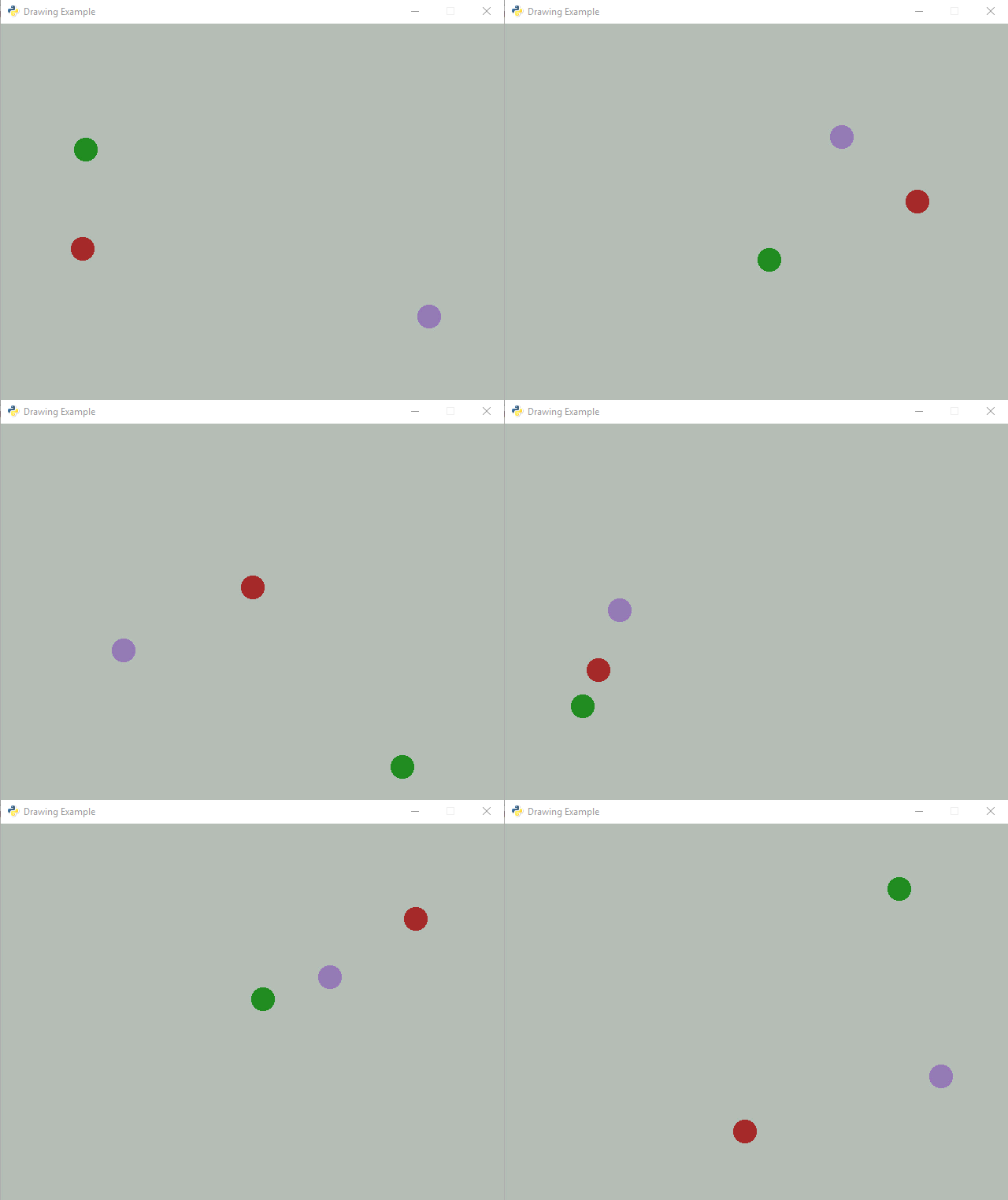
Wouldn’t it be nice to animate multiple items? How do we track multiple items? With a list! This takes our previous example and animates three balls at once.
1 2 3 4 5 6 7 8 9 10 11 12 13 14 15 16 17 18 19 20 21 22 23 24 25 26 27 28 29 30 31 32 33 34 35 36 37 38 39 40 41 42 43 44 45 46 47 48 49 50 51 52 53 54 55 56 57 58 59 60 61 62 63 64 65 66 67 68 69 70 71 72 73 74 75 76 77 78 79 80 81 | import arcade
SCREEN_WIDTH = 640
SCREEN_HEIGHT = 480
class Ball:
def __init__(self, position_x, position_y, change_x, change_y, radius, color):
# Take the parameters of the init function above, and create instance variables out of them.
self.position_x = position_x
self.position_y = position_y
self.change_x = change_x
self.change_y = change_y
self.radius = radius
self.color = color
def draw(self):
""" Draw the balls with the instance variables we have. """
arcade.draw_circle_filled(self.position_x, self.position_y, self.radius, self.color)
def animate(self):
# Move the ball
self.position_y += self.change_y
self.position_x += self.change_x
# See if the ball hit the edge of the screen. If so, change direction
if self.position_x < self.radius:
self.change_x *= -1
if self.position_x > SCREEN_WIDTH - self.radius:
self.change_x *= -1
if self.position_y < self.radius:
self.change_y *= -1
if self.position_y > SCREEN_HEIGHT - self.radius:
self.change_y *= -1
class MyApplication(arcade.Window):
def __init__(self, width, height, title):
# Call the parent class's init function
super().__init__(width, height, title)
arcade.set_background_color(arcade.color.ASH_GREY)
# Create a list for the balls
self.ball_list = []
# Add three balls to the list
ball = Ball(50, 50, 3, 3, 15, arcade.color.AUBURN)
self.ball_list.append(ball)
ball = Ball(100, 150, 2, 3, 15, arcade.color.PURPLE_MOUNTAIN_MAJESTY)
self.ball_list.append(ball)
ball = Ball(150, 250, -3, -1, 15, arcade.color.FOREST_GREEN)
self.ball_list.append(ball)
def on_draw(self):
""" Called whenever we need to draw the window. """
arcade.start_render()
# Use a "for" loop to pull each ball from the list, then call the draw
# method on that ball.
for ball in self.ball_list:
ball.draw()
def animate(self, delta_time):
""" Called to update our objects. Happens approximately 60 times per second."""
# Use a "for" loop to pull each ball from the list, then call the animate
# method on that ball.
for ball in self.ball_list:
ball.animate()
window = MyApplication(640, 480, "Drawing Example")
arcade.run()
|
9.5 User Control
How do we interact with the user? Get the user to move an object on the screen?
We can do this with the mouse, with the keyboard, or with the game controller.
9.5.1 Move with the Mouse
The key to managing mouse motion to override the on_mouse_motion in the
arcade.Window class. That method is called every time the mouse moves.
The method definition looks like this:
def on_mouse_motion(self, x, y, dx, dy):
The x and y are the coordinates of the mouse. the dx and dy
represent the change in x and y since the last time the method was called.
Often when controlling a graphical item on the screen with the mouse, we do
not want to see the mouse pointer. If you don’t want to see the mouse pointer,
in the __init__ method, call the following method in the parent class:
self.set_mouse_visible(False)
The example below takes our Ball class, and moves it around the screen with
the mouse.
1 2 3 4 5 6 7 8 9 10 11 12 13 14 15 16 17 18 19 20 21 22 23 24 25 26 27 28 29 30 31 32 33 34 35 36 37 38 39 40 41 42 43 44 45 46 47 48 49 | import arcade
SCREEN_WIDTH = 640
SCREEN_HEIGHT = 480
class Ball:
def __init__(self, position_x, position_y, radius, color):
# Take the parameters of the init function above, and create instance variables out of them.
self.position_x = position_x
self.position_y = position_y
self.radius = radius
self.color = color
def draw(self):
""" Draw the balls with the instance variables we have. """
arcade.draw_circle_filled(self.position_x, self.position_y, self.radius, self.color)
class MyApplication(arcade.Window):
def __init__(self, width, height, title):
# Call the parent class's init function
super().__init__(width, height, title)
# Make the mouse disappear when it is over the window.
# So we just see our object, not the pointer.
self.set_mouse_visible(False)
arcade.set_background_color(arcade.color.ASH_GREY)
# Create our ball
self.ball = Ball(50, 50, 15, arcade.color.AUBURN)
def on_draw(self):
""" Called whenever we need to draw the window. """
arcade.start_render()
self.ball.draw()
def on_mouse_motion(self, x, y, dx, dy):
""" Called to update our objects. Happens approximately 60 times per second."""
self.ball.position_x = x
self.ball.position_y = y
window = MyApplication(640, 480, "Mouse Example")
arcade.run()
|
9.5.2 Mouse Clicks
You can also process mouse clicks by defining an on_mouse_press method:
def on_mouse_press(self, x, y, button, modifiers):
    """ Called when the user presses a mouse button. """

    if button == arcade.MOUSE_BUTTON_LEFT:
        print("Left mouse button pressed at", x, y)
    elif button == arcade.MOUSE_BUTTON_RIGHT:
        print("Right mouse button pressed at", x, y)
9.5.3 Move with the Keyboard
Moving with the game controller is similar to our bouncing ball example. There are just two differences:
- We control the
change_xandchange_ywith the keyboard - When we hit the edge of the screen we stop, rather than bounce.
To detect when a key is hit, we override the on_key_press method. We might
think of hitting a key as one event. But it is actually two. When the key is
pressed, we start moving. When the key is released we stop moving. That makes
for two events. Releasing a key is controlled by on_key_release.
These methods have a key variable as a parameter that can be compared with
an if statement to the values in
the arcade.key library.
def on_key_press(self, key, modifiers):
    if key == arcade.key.LEFT:
        print("Left key hit")
    elif key == arcade.key.A:
        print("The 'a' key was hit")
We detect the edge by comparing position_x with the left and right side
of the screen For example:
if self.position_x < 0:
But this isn’t perfect. Because the position specifies the center of the ball, by the time the x coordinate is 0 we are already have off the screen. It is better to compare it to the ball’s radius:
if self.position_x < self.radius:
What do we do once it hits the edge? Just set the value back to the edge:
# See if the ball hit the edge of the screen. If so, change direction
if self.position_x < self.radius:
    self.position_x = self.radius
Here’s a full example:
1 2 3 4 5 6 7 8 9 10 11 12 13 14 15 16 17 18 19 20 21 22 23 24 25 26 27 28 29 30 31 32 33 34 35 36 37 38 39 40 41 42 43 44 45 46 47 48 49 50 51 52 53 54 55 56 57 58 59 60 61 62 63 64 65 66 67 68 69 70 71 72 73 74 75 76 77 78 79 80 81 82 83 84 85 86 | import arcade
SCREEN_WIDTH = 640
SCREEN_HEIGHT = 480
MOVEMENT_SPEED = 3
class Ball:
def __init__(self, position_x, position_y, change_x, change_y, radius, color):
# Take the parameters of the init function above, and create instance variables out of them.
self.position_x = position_x
self.position_y = position_y
self.change_x = change_x
self.change_y = change_y
self.radius = radius
self.color = color
def draw(self):
""" Draw the balls with the instance variables we have. """
arcade.draw_circle_filled(self.position_x, self.position_y, self.radius, self.color)
def animate(self):
# Move the ball
self.position_y += self.change_y
self.position_x += self.change_x
# See if the ball hit the edge of the screen. If so, change direction
if self.position_x < self.radius:
self.position_x = self.radius
if self.position_x > SCREEN_WIDTH - self.radius:
self.position_x = SCREEN_WIDTH - self.radius
if self.position_y < self.radius:
self.position_y = self.radius
if self.position_y > SCREEN_HEIGHT - self.radius:
self.position_y = SCREEN_HEIGHT - self.radius
class MyApplication(arcade.Window):
def __init__(self, width, height, title):
# Call the parent class's init function
super().__init__(width, height, title)
# Make the mouse disappear when it is over the window.
# So we just see our object, not the pointer.
self.set_mouse_visible(False)
arcade.set_background_color(arcade.color.ASH_GREY)
# Create our ball
self.ball = Ball(50, 50, 0, 0, 15, arcade.color.AUBURN)
def on_draw(self):
""" Called whenever we need to draw the window. """
arcade.start_render()
self.ball.draw()
def animate(self, delta_time):
self.ball.animate()
def on_key_press(self, key, modifiers):
""" Called whenever the user presses a key. """
if key == arcade.key.LEFT:
self.ball.change_x = -MOVEMENT_SPEED
elif key == arcade.key.RIGHT:
self.ball.change_x = MOVEMENT_SPEED
elif key == arcade.key.UP:
self.ball.change_y = MOVEMENT_SPEED
elif key == arcade.key.DOWN:
self.ball.change_y = -MOVEMENT_SPEED
def on_key_release(self, key, modifiers):
""" Called whenever a user releases a key. """
if key == arcade.key.LEFT or key == arcade.key.RIGHT:
self.ball.change_x = 0
elif key == arcade.key.UP or key == arcade.key.DOWN:
self.ball.change_y = 0
window = MyApplication(640, 480, "Mouse Example")
arcade.run()
|
9.5.4 Moving with the Game Controller
Working with game controllers is a bit more complex. A computer might not have any game controllers, or it might have five controllers plugged in.
We can get a list of all game pads that are plugged in with the
get_joysticks function. This will either return a list, or it will return
nothing at all if there are no game pads.
Below is a block of code that can be put in an __init__ method for your
application that will create an instance variable to represent a game pad
if one exists.
joysticks = arcade.get_joysticks()
if joysticks:
    self.joystick = joysticks[0]
    self.joystick.open()
else:
    print("There are no joysticks.")
    self.joystick = None
After this, you can get the position of the game controller joystick by calling
self.joystick.x and self.joystick.y. The values will be between -1 and +1,
with 0 being a centered joystick. Kind of.
Actually, a centered joystick might have a value not at 0, but at 0.0001 or some small number. This will make for a small “drift” on a person’s character. We often counteract this by having a “dead zone” where if the number is below a certain value, we just assume it is zero to eliminate the drift.
If you want to move faster than one pixel per frame, then just multiply the
self.joystick.x times five and you’ll be going five times faster.
Here is a full example:
1 2 3 4 5 6 7 8 9 10 11 12 13 14 15 16 17 18 19 20 21 22 23 24 25 26 27 28 29 30 31 32 33 34 35 36 37 38 39 40 41 42 43 44 45 46 47 48 49 50 51 52 53 54 55 56 57 58 59 60 61 62 63 64 65 66 67 68 69 70 71 72 73 74 75 76 77 78 79 80 81 82 83 84 85 86 87 88 89 | import arcade
SCREEN_WIDTH = 640
SCREEN_HEIGHT = 480
MOVEMENT_MULTIPLIER = 5
DEAD_ZONE = 0.02
class Ball:
def __init__(self, position_x, position_y, change_x, change_y, radius, color):
# Take the parameters of the init function above, and create instance variables out of them.
self.position_x = position_x
self.position_y = position_y
self.change_x = change_x
self.change_y = change_y
self.radius = radius
self.color = color
def draw(self):
""" Draw the balls with the instance variables we have. """
arcade.draw_circle_filled(self.position_x, self.position_y, self.radius, self.color)
def animate(self):
# Move the ball
self.position_y += self.change_y
self.position_x += self.change_x
# See if the ball hit the edge of the screen. If so, change direction
if self.position_x < self.radius:
self.position_x = self.radius
if self.position_x > SCREEN_WIDTH - self.radius:
self.position_x = SCREEN_WIDTH - self.radius
if self.position_y < self.radius:
self.position_y = self.radius
if self.position_y > SCREEN_HEIGHT - self.radius:
self.position_y = SCREEN_HEIGHT - self.radius
class MyApplication(arcade.Window):
def __init__(self, width, height, title):
# Call the parent class's init function
super().__init__(width, height, title)
# Make the mouse disappear when it is over the window.
# So we just see our object, not the pointer.
self.set_mouse_visible(False)
arcade.set_background_color(arcade.color.ASH_GREY)
# Create our ball
self.ball = Ball(50, 50, 0, 0, 15, arcade.color.AUBURN)
joysticks = arcade.get_joysticks()
if joysticks:
self.joystick = joysticks[0]
self.joystick.open()
else:
print("There are no joysticks.")
self.joystick = None
def on_draw(self):
""" Called whenever we need to draw the window. """
arcade.start_render()
self.ball.draw()
def animate(self, delta_time):
if self.joystick:
self.ball.change_x = self.joystick.x * MOVEMENT_MULTIPLIER
# Set a "dead zone" to prevent drive from a centered joystick
if abs(self.ball.change_x) < DEAD_ZONE:
self.ball.change_x = 0
self.ball.change_y = -self.joystick.y * MOVEMENT_MULTIPLIER
# Set a "dead zone" to prevent drive from a centered joystick
if abs(self.ball.change_y) < DEAD_ZONE:
self.ball.change_y = 0
self.ball.animate()
window = MyApplication(640, 480, "Game Controller Example")
arcade.run()
|